Mirror a GitLab Repo to GitHub via SSH
A concise, step-by-step guide to automatically mirror your GitLab repositories to GitHub using SSH.
· 4 min read
Want to keep your code in sync between GitLab and GitHub? Here’s a quick, reliable way to set up push mirroring from GitLab to GitHub using SSH.
Why Set Up a Push Mirror? #
There are several reasons you might want this setup:
- You want to maintain presence on both GitHub and GitLab.
- You’re migrating from GitLab to GitHub but want to keep the old repo active.
- You’re using GitLab CI/CD but need GitHub for integrations or visibility.
- You want redundancy across platforms — if one goes down, your code lives on the other.
Steps #
1. Set Up Mirroring in GitLab #
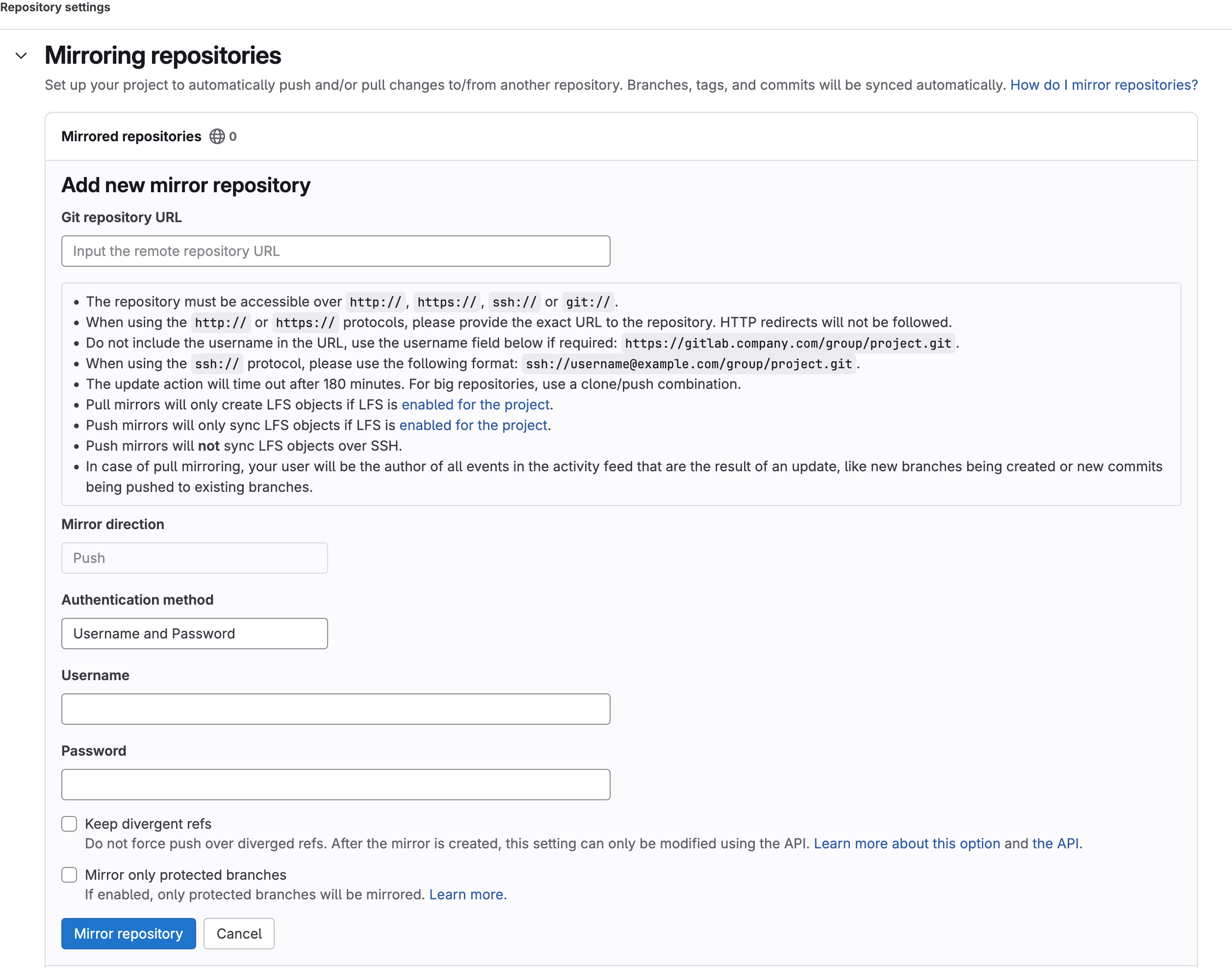
- Go to your GitLab repository.
- Navigate to Settings → Repository.
- Scroll to Mirroring repositories.
- Click Add new.
- Fill in the details:
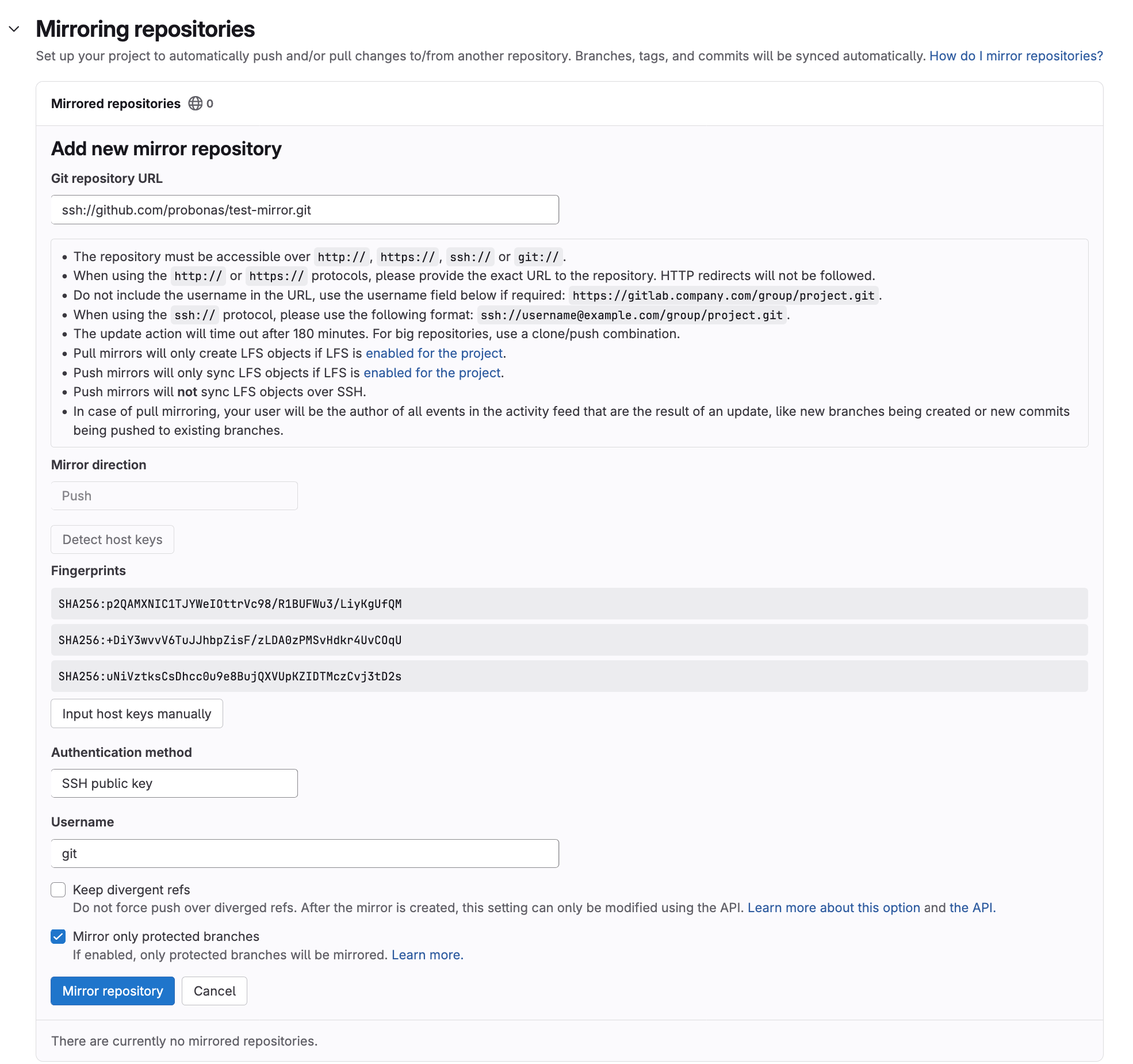
- Set Git repository URL to ssh://github.com/<username>/<repo>.git
- Create an empty repo under GitHub if needed
- DO NOT use a URL like ssh://git@github.com/probonas/test-mirror.git as we are going to set the username to git manually later
- After setting the url, you should either:
- Click Detect Host Keys and let GitLab figure out the Github’s host keys
- Provide them manually by clicking Input host keys manually and pasting the output of:
$ ssh-keyscan -t rsa,ecdsa,ed25519 github.com # github.com:22 SSH-2.0-1581bab2 github.com ssh-rsa AAAAB3NzaC1yc2EAAAADAQABAAABgQCj7ndNxQowgcQnjshcLrqPEiiphnt+VTTvDP6mHBL9j1aNUkY4Ue1gvwnGLVlOhGeYrnZaMgRK6+PKCUXaDbC7qtbW8gIkhL7aGCsOr/C56SJMy/BCZfxd1nWzAOxSDPgVsmerOBYfNqltV9/hWCqBywINIR+5dIg6JTJ72pcEpEjcYgXkE2YEFXV1JHnsKgbLWNlhScqb2UmyRkQyytRLtL+38TGxkxCflmO+5Z8CSSNY7GidjMIZ7Q4zMjA2n1nGrlTDkzwDCsw+wqFPGQA179cnfGWOWRVruj16z6XyvxvjJwbz0wQZ75XK5tKSb7FNyeIEs4TT4jk+S4dhPeAUC5y+bDYirYgM4GC7uEnztnZyaVWQ7B381AK4Qdrwt51ZqExKbQpTUNn+EjqoTwvqNj4kqx5QUCI0ThS/YkOxJCXmPUWZbhjpCg56i+2aB6CmK2JGhn57K5mj0MNdBXA4/WnwH6XoPWJzK5Nyu2zB3nAZp+S5hpQs+p1vN1/wsjk= # github.com:22 SSH-2.0-1581bab2 github.com ssh-ed25519 AAAAC3NzaC1lZDI1NTE5AAAAIOMqqnkVzrm0SdG6UOoqKLsabgH5C9okWi0dh2l9GKJl # github.com:22 SSH-2.0-1581bab2 github.com ecdsa-sha2-nistp256 AAAAE2VjZHNhLXNoYTItbmlzdHAyNTYAAAAIbmlzdHAyNTYAAABBBEmKSENjQEezOmxkZMy7opKgwFB9nkt5YRrYMjNuG5N87uRgg6CLrbo5wAdT/y6v0mKV0U2w0WZ2YB/++Tpockg= - Set Authentication Method to SSH public key
- Set Username to git
- Set Git repository URL to ssh://github.com/<username>/<repo>.git
- Click Mirror repository.
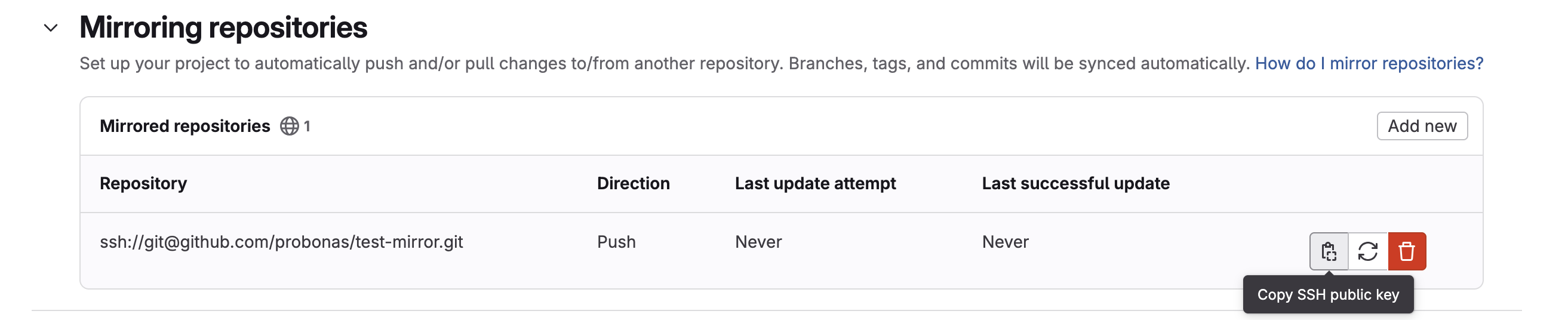
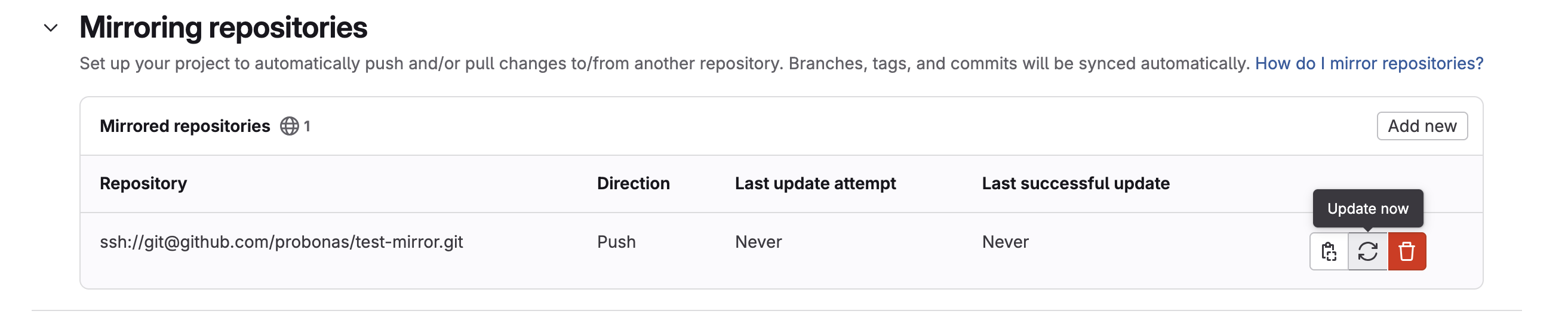
- Click Copy SSH public key in the entry under Mirroring repositories we just added

2. Add the Deploy Key in GitHub #
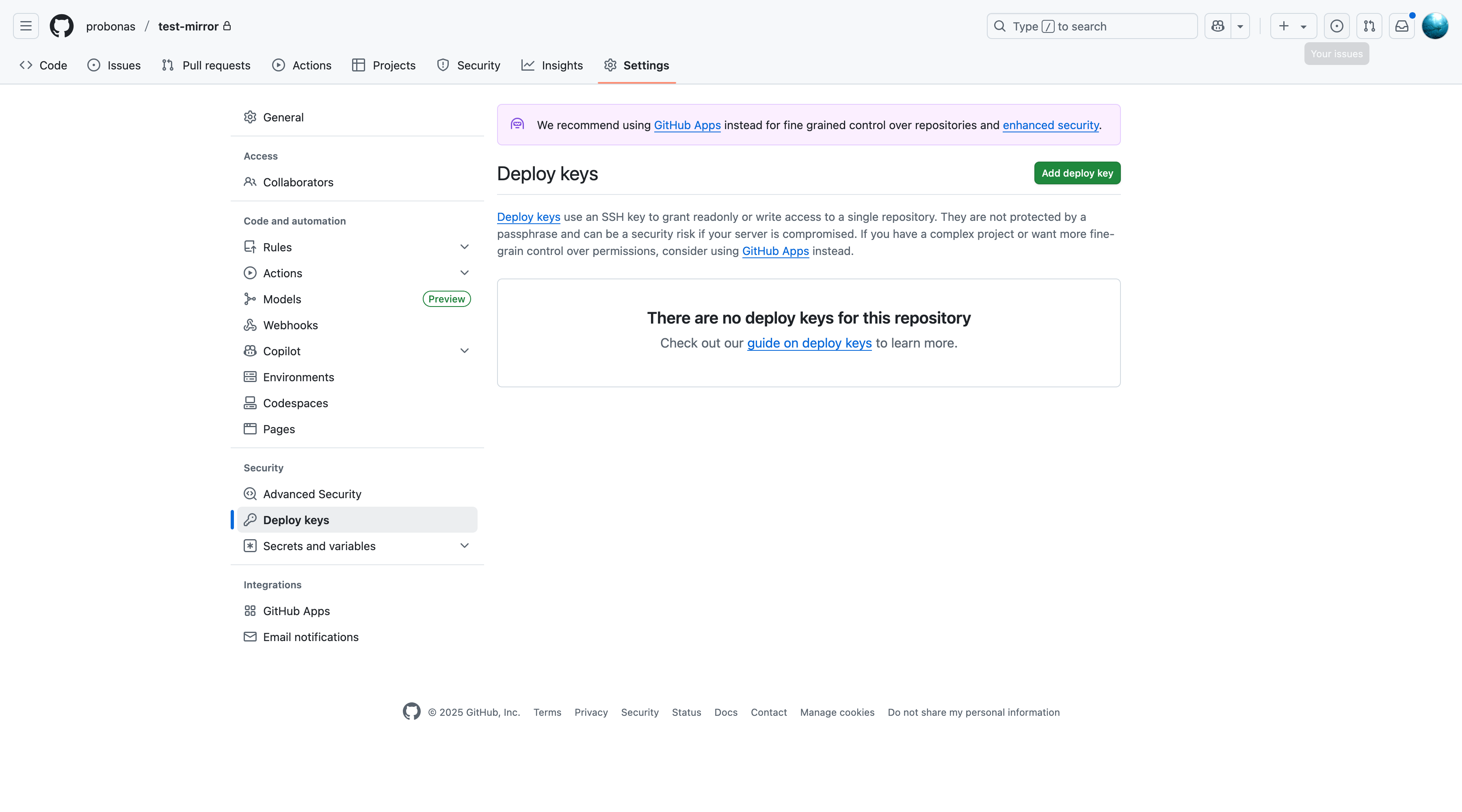
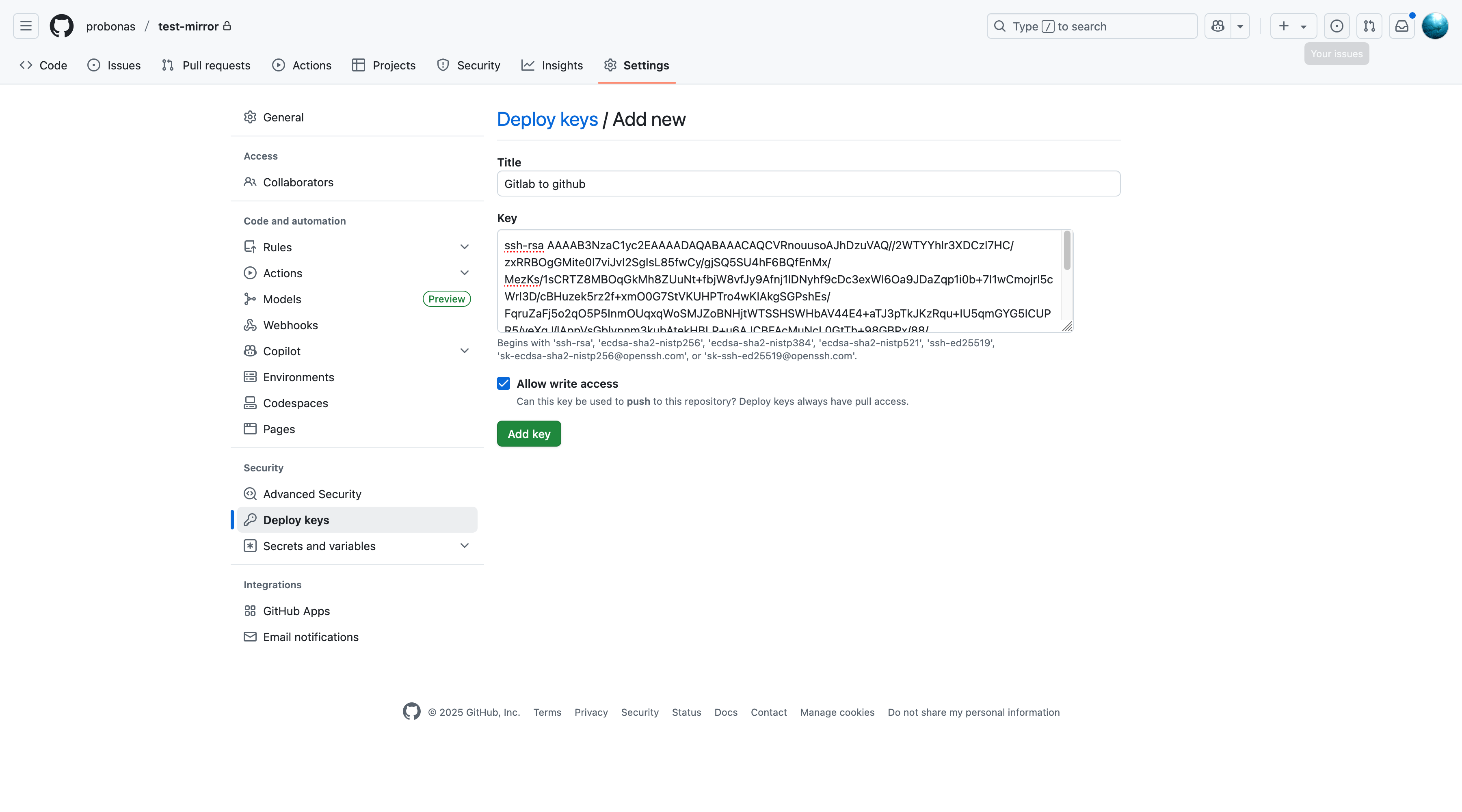
- In your GitHub repository, go to Settings → Deploy keys.
- Click Add deploy key.
- Paste the SSH public key from GitLab.
- Give it a name (e.g., “GitLab Mirror”).
- Make sure to select Allow write access.
- Click Add key.
3. Trigger the First Mirror #
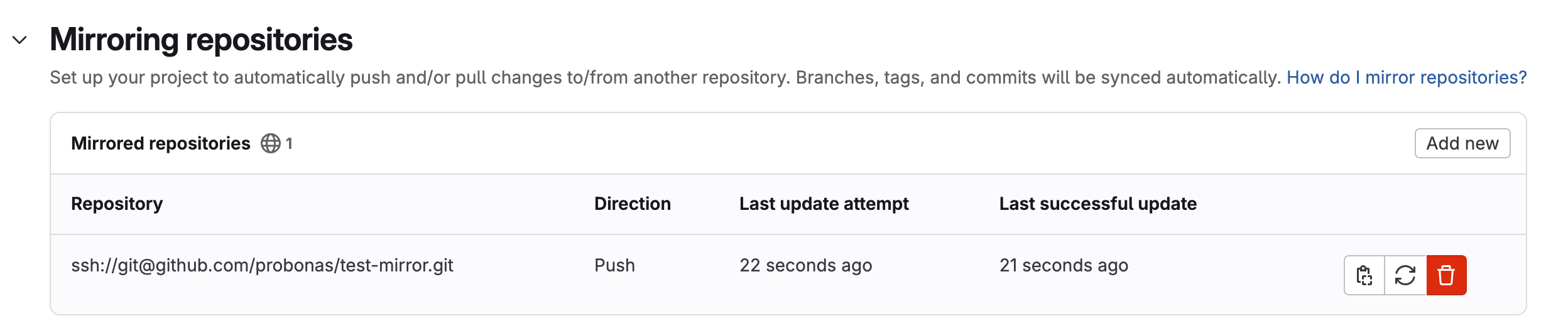
- Back in GitLab, under Mirroring repositories, click Update Now.
- Wait for a while and refresh.
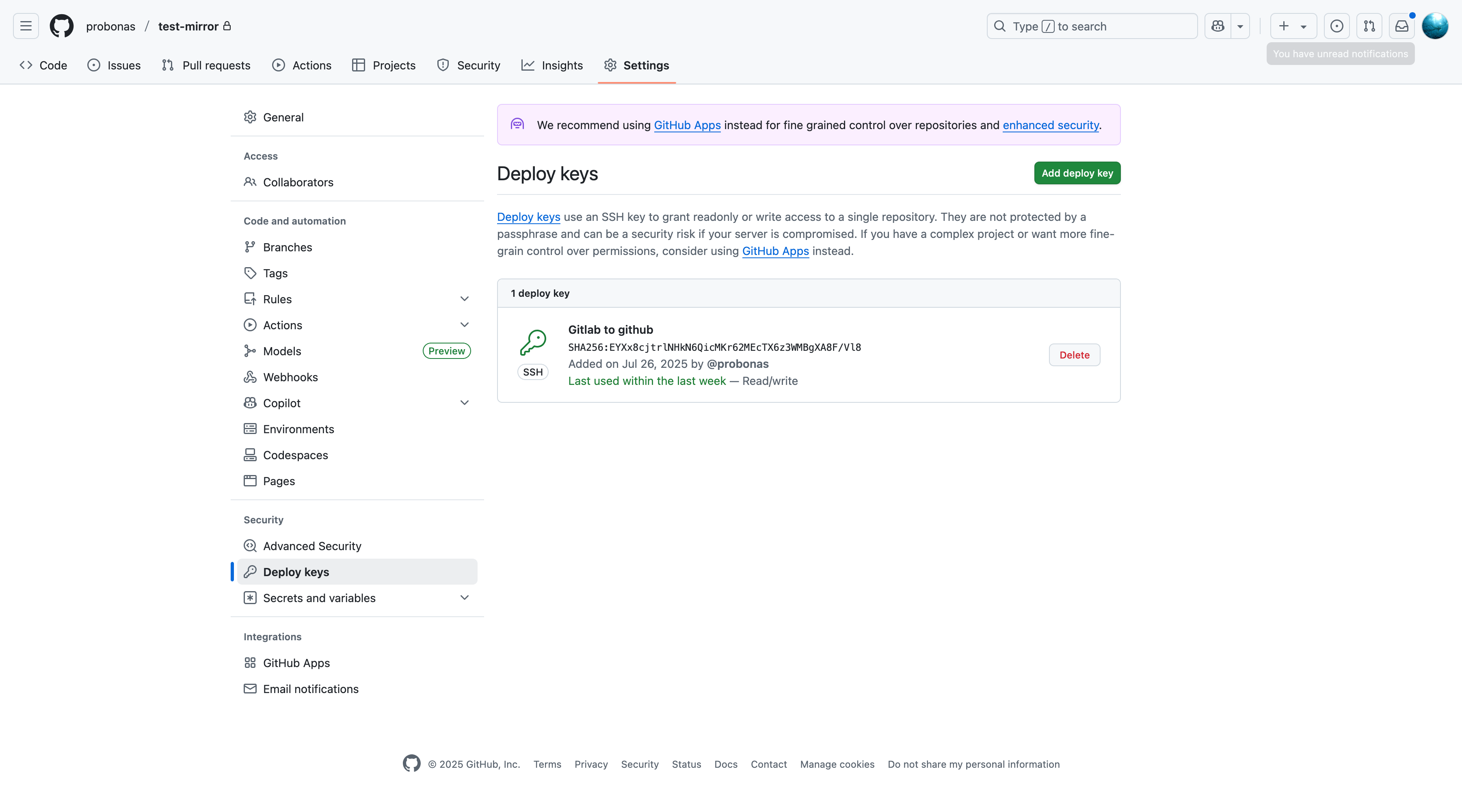
- On GitHub, confirm the deploy key was used.
That’s It! #
Now, every push to your GitLab repository will automatically mirror to GitHub.
Troubleshooting FAQ #
Q: The mirror status shows “failed” but no details.
Check /var/log/gitlab/gitlab-rails/production_json.log on your GitLab instance. Look for "mirror_error" entries. Common causes: the deploy key doesn’t have write access, the host keys are mismatched, or the target repo URL is incorrect.
Q: “Host key verification failed” error.
Run ssh-keyscan -t rsa,ecdsa,ed25519 github.com from a trusted machine and paste the output into the Input host keys manually field in GitLab’s mirror settings. Don’t rely on Detect Host Keys — it can occasionally pick up stale or incorrect keys.
Q: “Permission denied (publickey)” error.
This almost always means the deploy key on GitHub doesn’t have Allow write access checked. Go to GitHub → Settings → Deploy keys, find the key, and verify the checkbox. If you missed it, delete the key, re-add it with write access, and re-copy the public key to GitLab.
Q: Only some branches are mirroring.
GitLab push mirroring mirrors all branches by default, but protected branches on GitHub can reject pushes from the deploy key. Either unprotect the branch on GitHub or explicitly grant the deploy key access to protected branches in GitHub’s branch protection settings.
Q: How do I stop mirroring?
In GitLab, go to Settings → Repository → Mirroring repositories, find the mirror entry, and click Remove. This only affects mirroring — it doesn’t delete any data on either side.
Alternative: GitLab CI/CD Push #
If you prefer not to use GitLab’s built-in mirroring, you can achieve the same result with a CI/CD pipeline:
mirror-to-github:
  stage: deploy
  only:
    - main
  script:
    - git remote add github https://${GITHUB_TOKEN}@github.com/username/repo.git
- git push --mirror githubStore GITHUB_TOKEN as a CI/CD variable in GitLab. This gives you more control (you decide which branches trigger mirroring) but requires maintaining a pipeline definition and a token.
Tips #
- Troubleshooting: If mirroring fails, double-check the SSH key and repository URL.
- Security: Only grant write access to deploy keys you trust. Rotate keys periodically.
- Two-way sync: This guide covers one-way push mirroring (GitLab → GitHub). For bidirectional sync, you’d need to set up mirroring in both directions with care to avoid conflicts — generally not recommended for active repositories.
Further Reading #
For more detailed information about repository mirroring and SSH key management, check out the official documentation:
- GitLab Push Mirroring Documentation - Comprehensive guide to setting up push mirrors in GitLab, including authentication methods and troubleshooting.
- GitHub Deploy Keys Documentation - Official guide to managing SSH deploy keys for automated deployments and repository access.